ImageKit
ImageKit is a platform to optimize, transform, store, manage and deliver visuals, so developers ship faster, marketers iterate freely, and your users enjoy flawless visuals everywhere.

Why Use ImageKit?
ImageKit is a unified Image and Video API combined with an AI-powered Digital Asset Management (DAM) platform. It empowers developers and marketers to deliver flawless visual experiences across the web. Offering automatic media optimization, over 50 real-time transformations, and superfast content delivery via a global CDN, ImageKit.io simplifies how you handle and deliver images and videos. Its integrated DAM further enhances asset management, visual search, and team collaboration. Trusted by over 250,000 developers and 2,000+ businesses globally, ImageKit enables developers to ship faster, marketers to iterate freely, and your users to enjoy flawless visuals everywhere.
Visit the ImageKit documentation for more.
Why Use Strapi?
Strapi is the leading open-source headless CMS offering features, like customizable APIs, role-based permissions, multilingual support, etc. It simplifies content management and integrates effortlessly with modern frontend frameworks.
Explore the Strapi documentation for more details.
Strapi 5 Highlights
The out-of-the-box Strapi features allow you to get up and running in no time:
- Single types: Create one-off pages that have a unique content structure.
- Draft and Publish: Reduce the risk of publishing errors and streamline collaboration.
- 100% TypeScript Support: Enjoy type safety & easy maintainability
- Customizable API: With Strapi, you can just hop in your code editor and edit the code to fit your API to your needs.
- Integrations: Strapi supports integrations with Cloudinary, SendGrid, Algolia, and others.
- Editor interface: The editor allows you to pull in dynamic blocks of content.
- Authentication: Secure and authorize access to your API with JWT or providers.
- RBAC: Help maximize operational efficiency, reduce dev team support work, and safeguard against unauthorized access or configuration modifications.
- i18n: Manage content in multiple languages. Easily query the different locales through the API.
- Plugins: Customize and extend Strapi using plugins.
Learn more about Strapi 5 feature.
Setup Strapi 5 Headless CMS
We are going to start by setting up our Strapi 5 project with the following command:
🖐️ Note: make sure that you have created a new directory for your project.
You can find the full documentation for Strapi 5 here.
Install Strapi
npx create-strapi-app@latest serverYou will be asked to choose if you would like to use Strapi Cloud we will choose to skip for now.
 🚀 Welcome to Strapi! Ready to bring your project to life?

...

? Please log in or sign up.
  Login/Sign up
❯ Skip
After that, you will be asked how you would like to set up your project. We will choose the following options:
? Do you want to use the default database (sqlite) ? Yes
? Start with an example structure & data? Yes <-- make sure you say yes
? Start with Typescript? Yes
? Install dependencies with npm? Yes
? Initialize a git repository? Yes
Once everything is set up and all the dependencies are installed, you can start your Strapi server with the following command:
cd server
npm run develop
You will be greeted with the Admin Create Account screen.
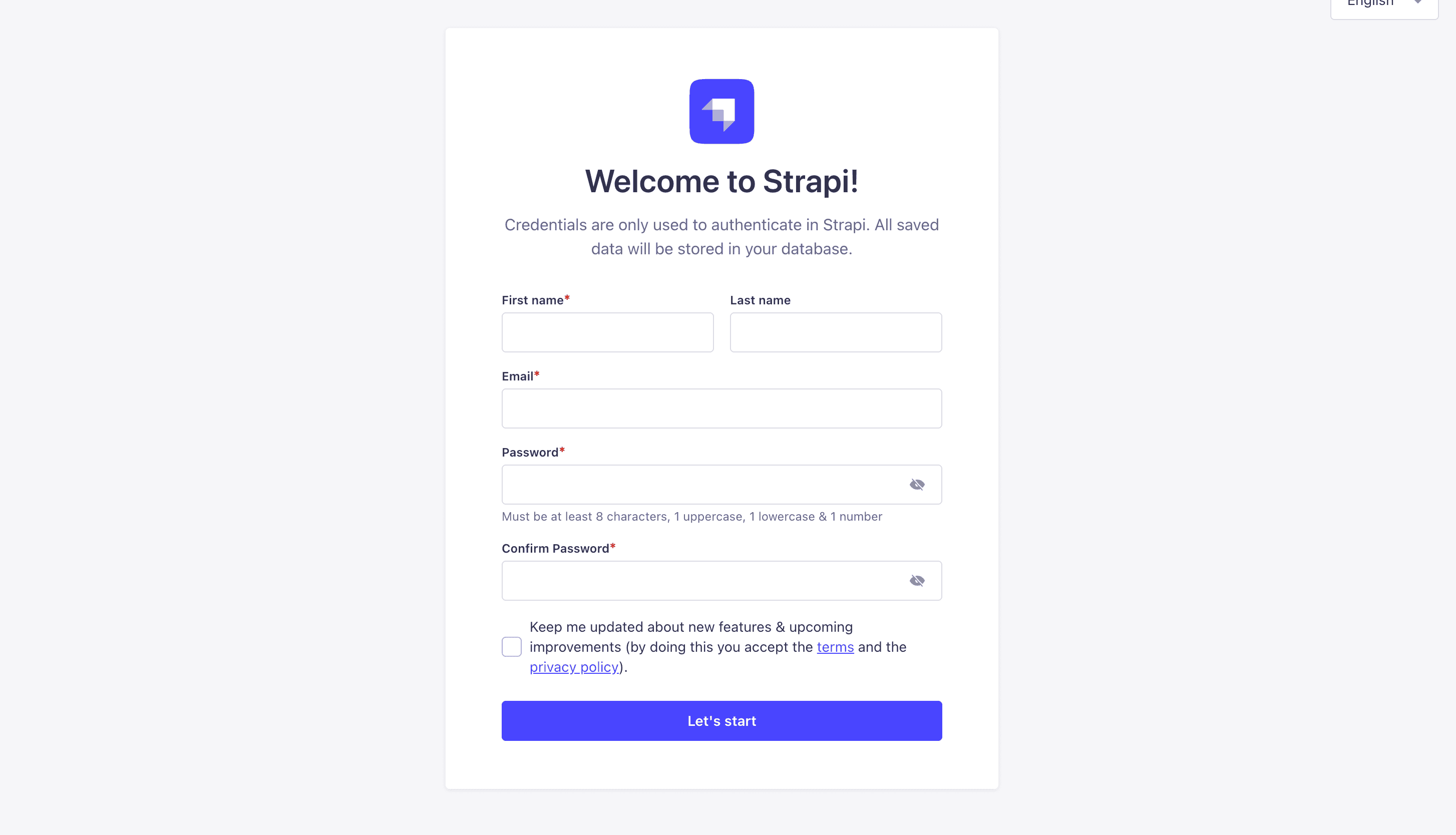
Go ahead and create your first Strapi admin user. All of this is local so you can use whatever you want.
Once you have created your admin user, you will be redirected to the Strapi Dashboard screen.
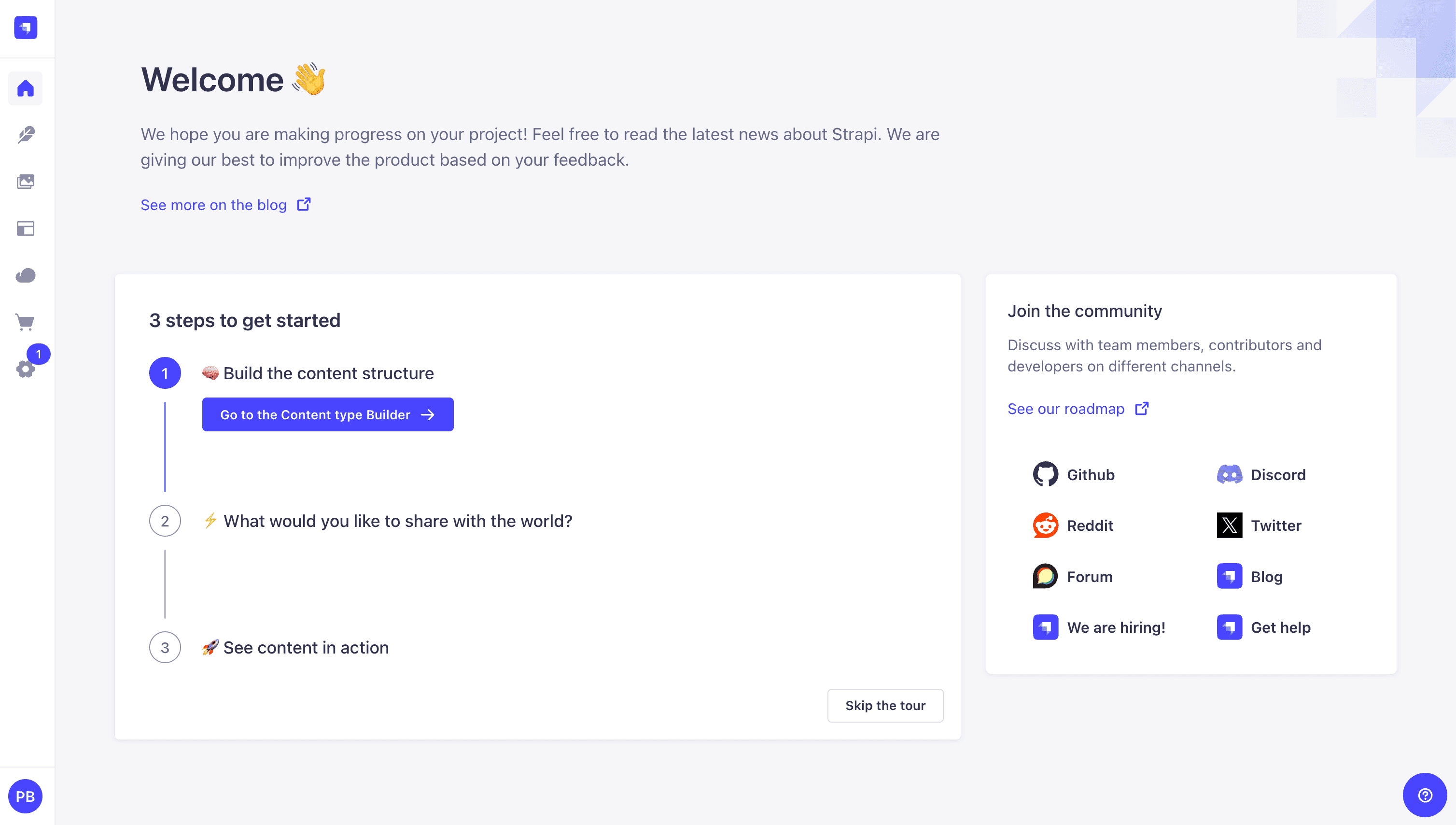
Publish Article Entries
Since we created our app with the example data, you should be able to navigate to your Article collection and see the data that was created for us.
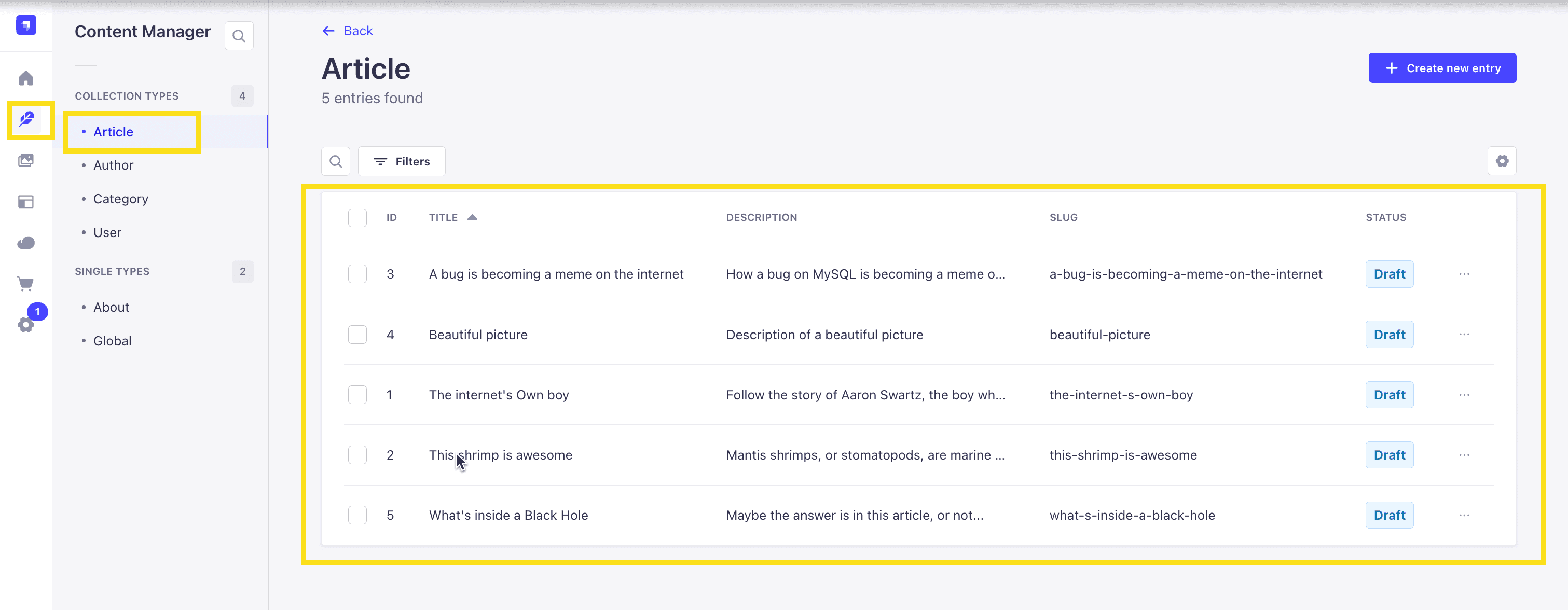
Now, let's make sure that all of the data is published. If not, you can select all items via the checkbox and then click the Publish button.
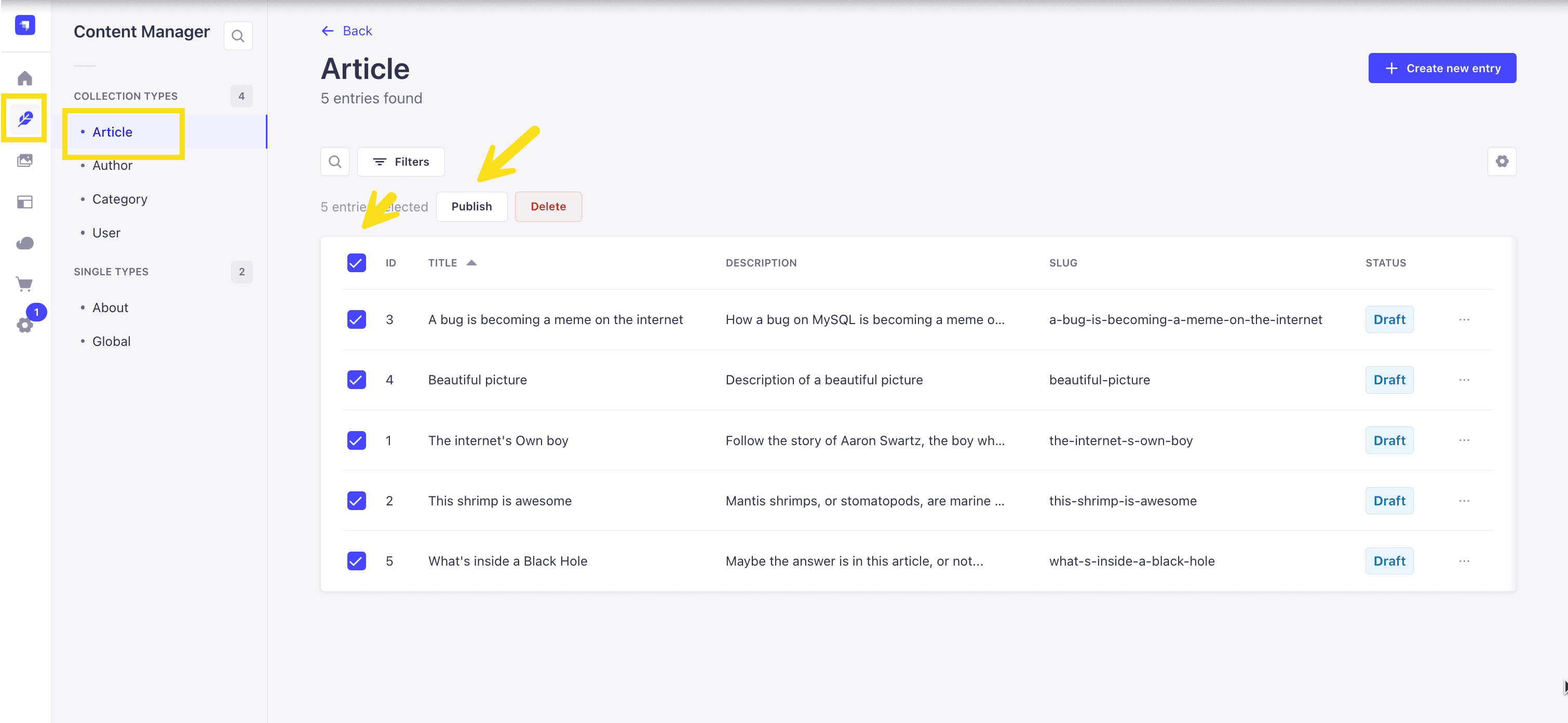
Enable API Access
Once all your articles are published, we will expose our Strapi API for the Articles Collection. This can be done in Settings -> Users & Permissions plugin -> Roles -> Authenticated -> Article.
Select all the options.
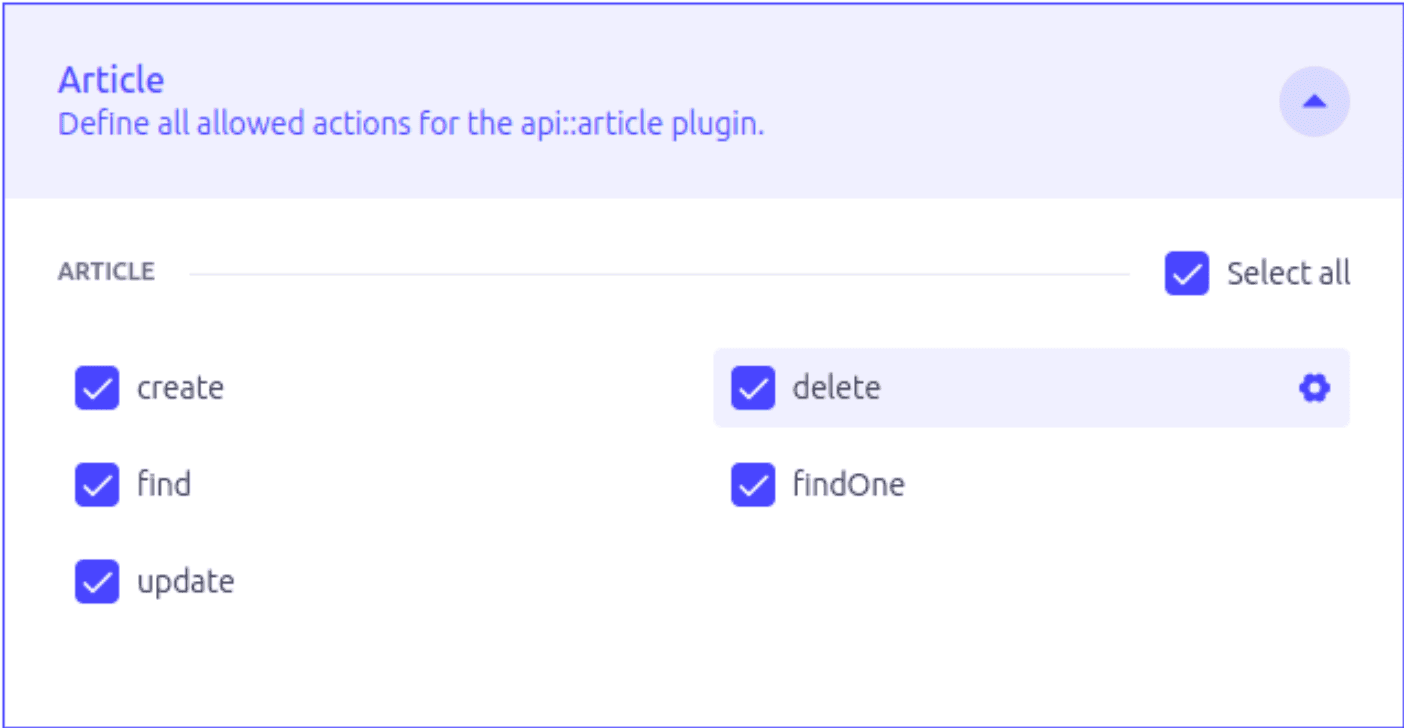
Do the same for Author and Category
Create a User
We want to create a user (not an admin one) in order to connect to access the API. To to Content Manager -> Collection types -> User. Create one making sure that you give it the Authenticated role.
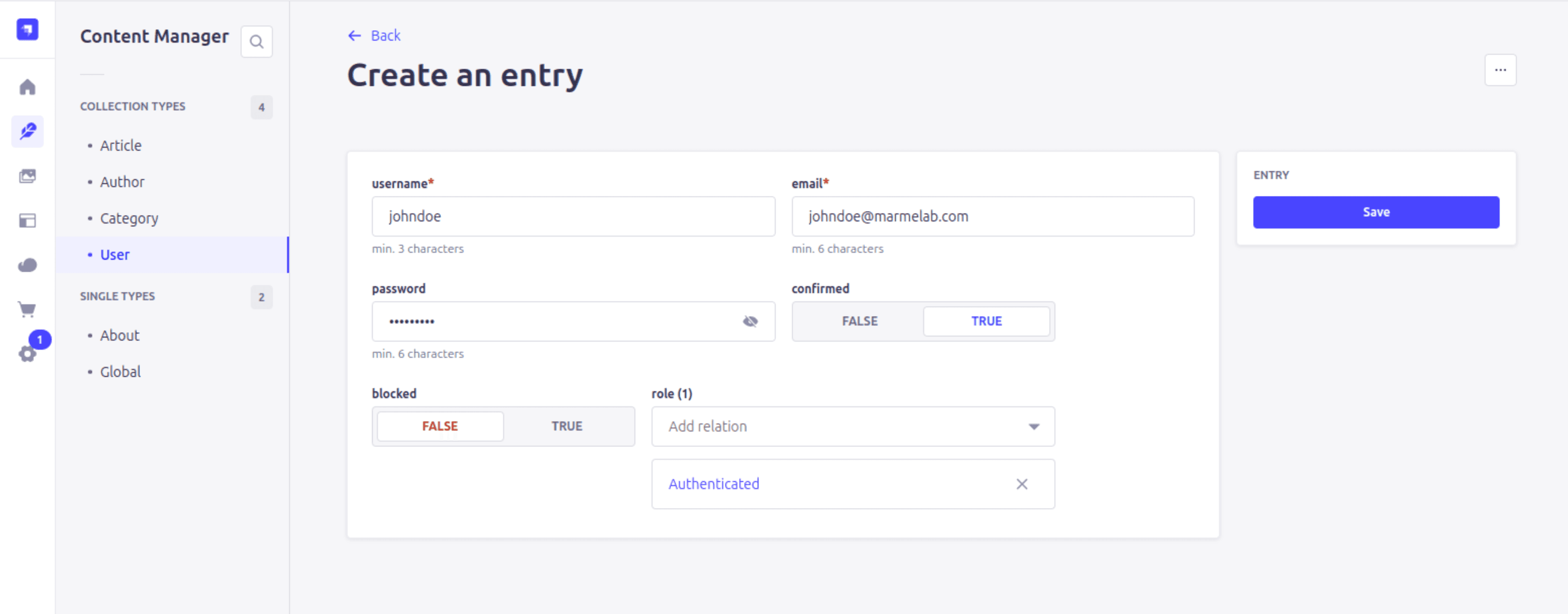
Nice, now that we have our Strapi 5 server setup, we can start to setup our ImageKit application.
Getting Started with ImageKit
Before you begin, you need an ImageKit account. It's completely free and you can sign up for a new account here.
Features in ImageKit Strapi plugin
- Media Library Integration: Browse and manage your ImageKit media library directly in Strapi
- Bulk Import: Import existing ImageKit assets into Strapi with a single click
- Optimized Delivery: Serve optimized images and videos through ImageKit
- Upload: Upload new files to ImageKit directly from the Strapi media library
- Signed URLs: Deliver signed URLs for your media assets
Installation
To install the ImageKit plugin in your Strapi instance, run one of the following commands from your project's root directory:
# Using NPM
npm install strapi-plugin-imagekit --save

# Using Yarn (recommended)
yarn add strapi-plugin-imagekit
Once installed, you must rebuild your Strapi instance:
# Using NPM
npm run build
npm run develop

# Using Yarn
yarn build
yarn develop

# OR development mode with auto-reload for admin panel
yarn develop --watch-admin
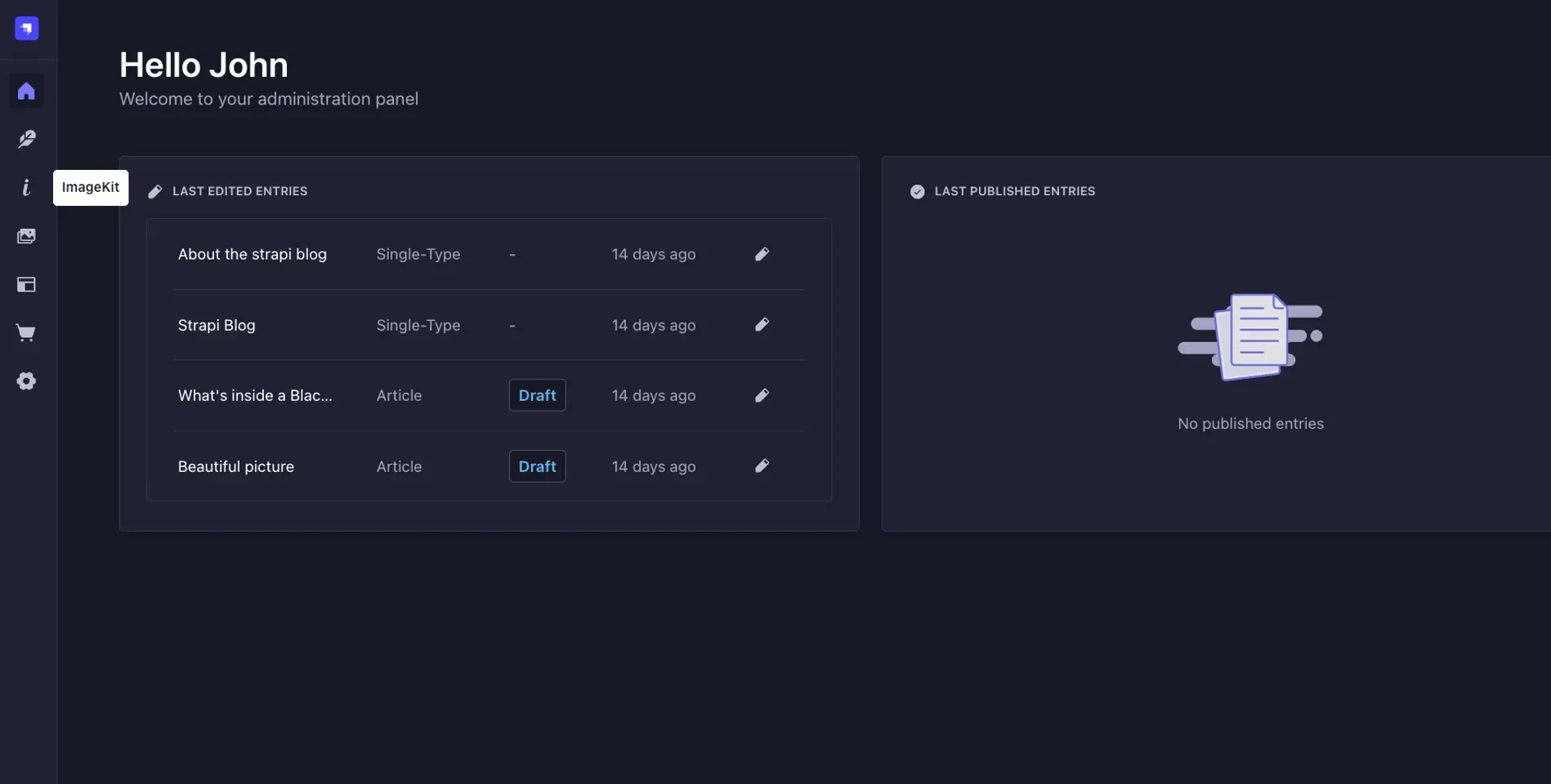
The ImageKit plugin will appear in the sidebar and Settings section after the app rebuilds.
Configuration
Configure in Admin UI
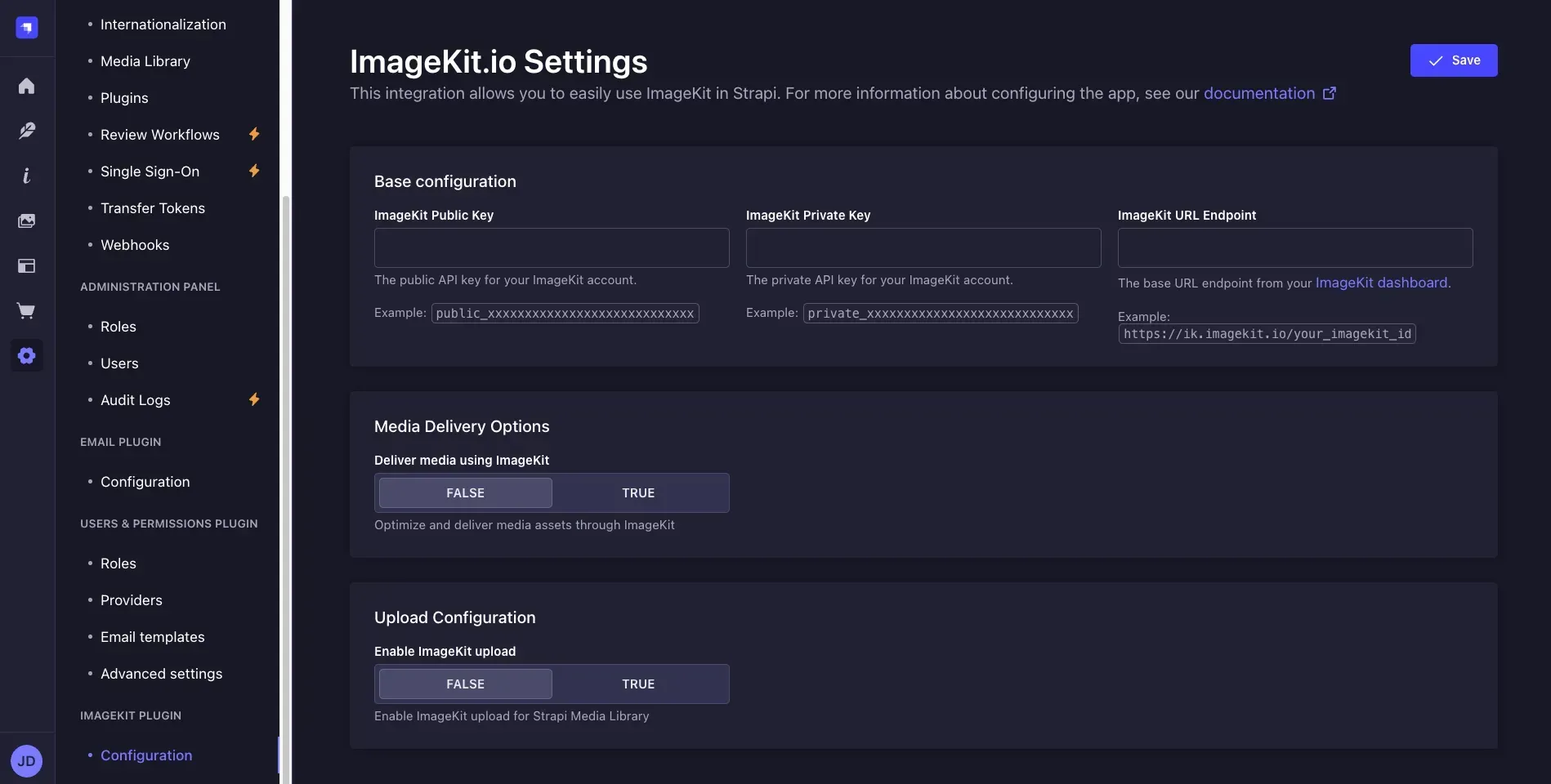
You can configure the ImageKit plugin from within the Strapi admin dashboard. Follow these steps:
- Go to Settings in the main sidebar
- Find the ImageKit Plugin section and click on Configuration.
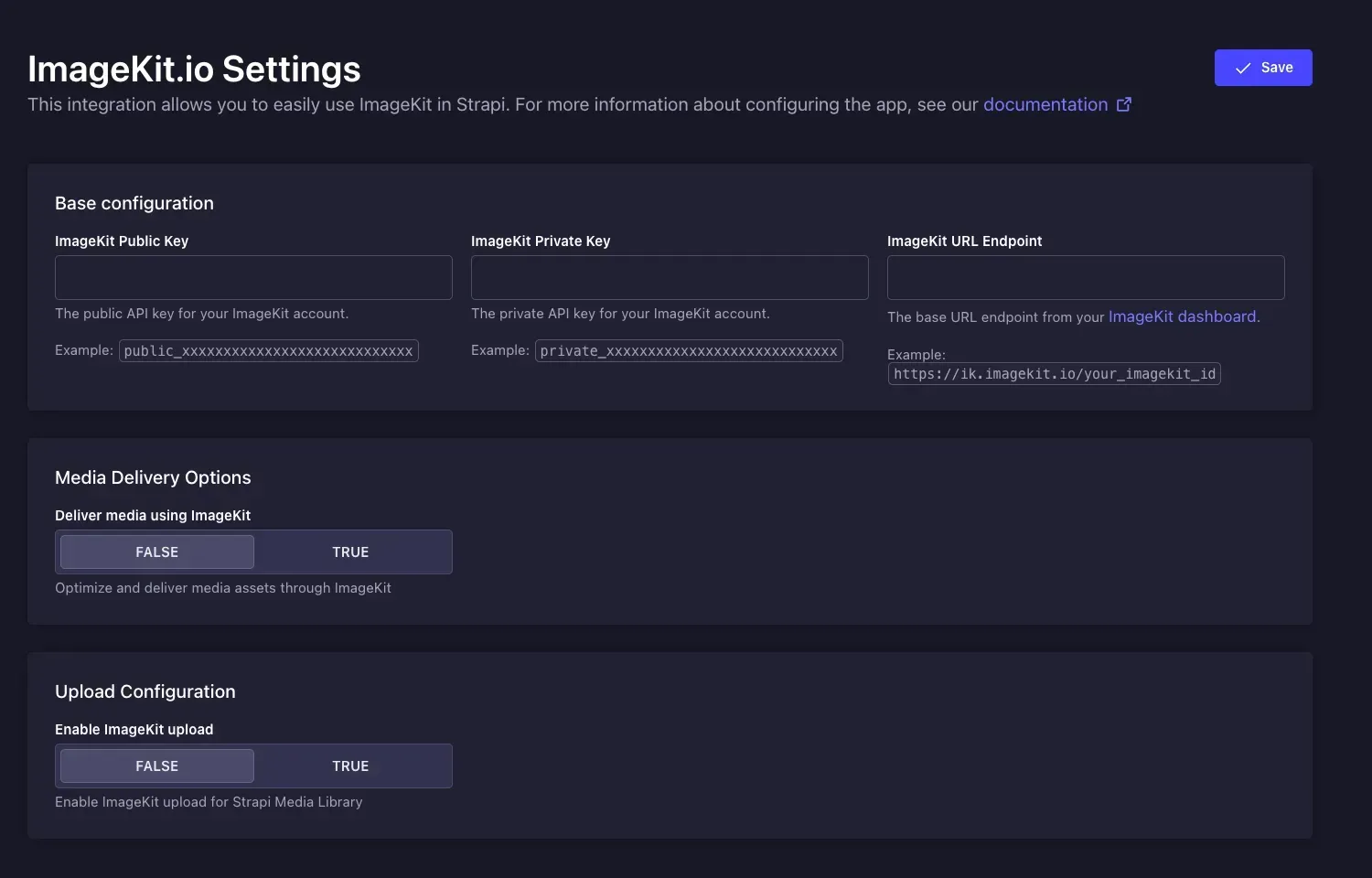
You'll see three configuration sections that you should complete in order:
1. Base Configuration
This section contains the essential credentials to connect with your ImageKit account:
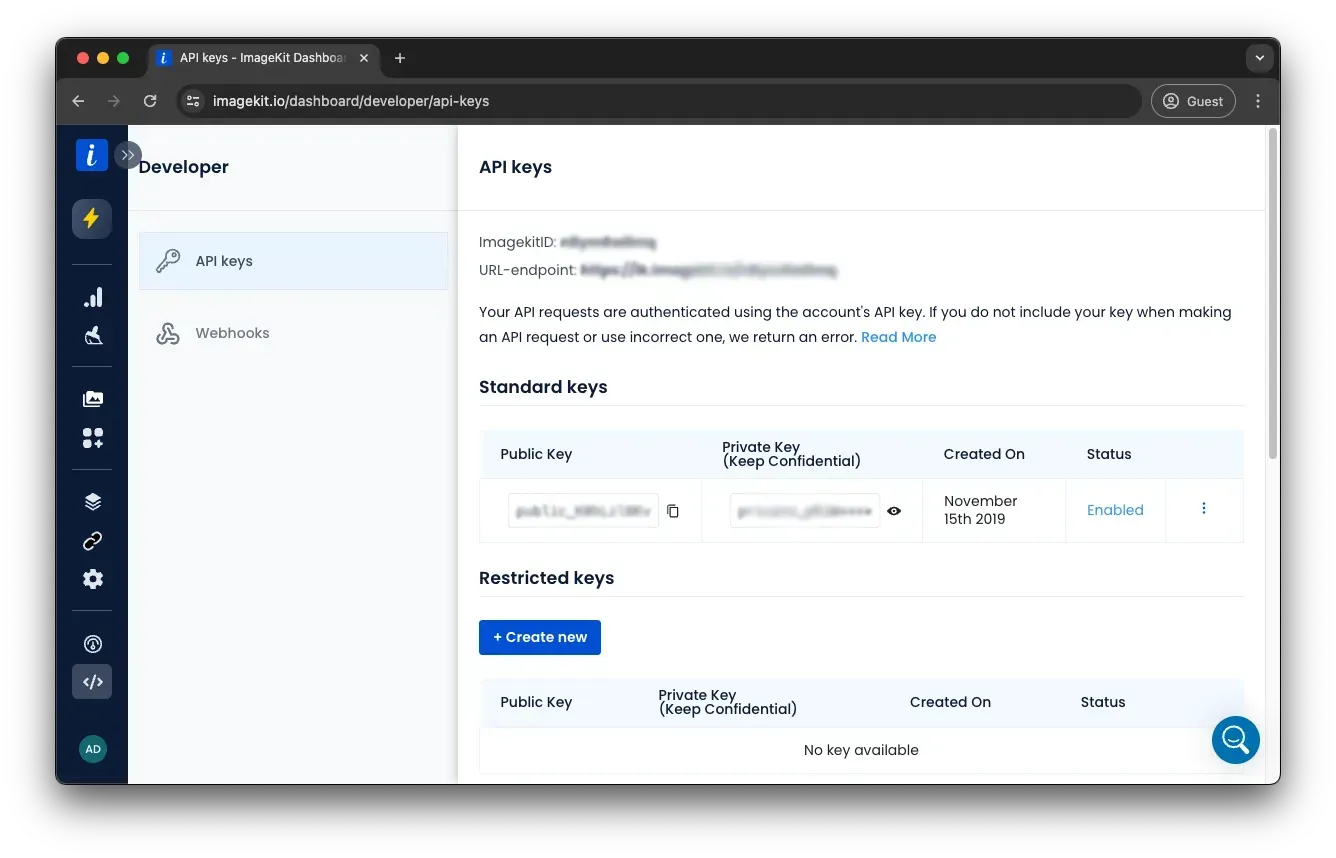
- Public Key: Obtain your public key (prefixed with
public_) from the API Keys section of your ImageKit dashboard. - Private Key: Copy your private key (prefixed with
private_) from the same dashboard page. Note: Keep your private key confidential as it grants full access to your ImageKit account. - URL Endpoint: Get your endpoint URL (formatted as
https://ik.imagekit.io/your_imagekit_id) from the same dashboard page.
2. Configure Media Delivery
After adding your credentials, set up how your media will be served:
- Configure Web Folder Origin: Add Strapi as a web folder origin in your ImageKit dashboard (ignore if already done). Follow the Web Server Integration Documentation for detailed steps.
- Enable Integration: Toggle Enable Plugin to ON to activate ImageKit integration for media handling. When OFF, Strapi will use the default provider for uploads.
- Enable Transformations: Toggle Use Transform URLs to ON to leverage ImageKit's real-time transformations, generating responsive URLs with automatic format detection and image optimization capabilities. When OFF, original images are served without transformations.
- Configure Secure Access (recommended):
- Enable Use Signed URLs
- Set an appropriate Expiry time (0 for URLs that never expire, or a duration in seconds)
3. Configure Upload Options
Decide how uploads should work:
- Enable Uploads: Toggle this option ON to upload the files uploaded in Strapi to your ImageKit media library. When OFF, files will be uploaded to the default Strapi storage location. Enabling this option does not upload existing files in Strapi to ImageKit.
- Set Upload Properties:
- Upload Folder: Specify a base directory path in ImageKit for organizing your uploads (e.g.,
/strapi-uploads/) - Tags: Add comma-separated tags to categorize and filter media assets (e.g.,
strapi,media) - Overwrite Tags: Choose whether to replace existing tags or append new ones
- Upload Folder: Specify a base directory path in ImageKit for organizing your uploads (e.g.,
- Configure Security & Validation:
- File Checks: Define validation rules for uploads such as size limits or allowed file types. See Upload API Checks for available options.
- Mark as Private: Toggle ON to restrict public access to uploaded files (requires signed URLs to access)
4. Save Your Configuration
Click the Save button in the top-right corner to apply your settings.
Note: Some changes may require restarting your Strapi server to take full effect.
Github Project Repo
You can find out more about the plugin and advanced configuration options in the Github repo.
Strapi Open Office Hours
If you have any questions about Strapi 5 or just would like to stop by and say hi, you can join us at Strapi's Discord Open Office Hours Monday through Friday at 12:30 pm - 1:30 pm CST: Strapi Discord Open Office Hours
For more details, visit the Strapi documentation and ImageKit documentation.