Monaco Editor
Integrate Monaco Editor with Strapi

Why Use Monaco Editor
If you've ever wondered what's under the hood of Visual Studio Code, it's the Monaco Editor—the engine that brings powerful coding features right to your fingertips. Syntax highlighting and IntelliSense act like your personal coding assistants, keeping you on track. And with customizable themes, you can make your workspace truly your own. Combined with features like Strapi's Rich Text Editor, such as CKEditor, your content management system is enhanced with advanced rich text editing capabilities, improved media handling, and customization options, making it more efficient for content formatting and structuring.
Support for a wide array of languages means you can switch between projects without the hassle of changing editors. Strapi supports various editor integrations, including CKEditor integration. While Strapi does not specifically document or support Monaco Editor integration, its flexible plugin system allows for the integration of custom editors by creating or modifying plugins within the Strapi framework.
For more details, check out the official documentation.
Why Use Strapi?
Strapi is the leading open-source headless CMS offering features, like customizable APIs, role-based permissions, multilingual support, etc. It simplifies content management and integrates effortlessly with modern frontend frameworks.
Explore the Strapi documentation for more details.
Strapi 5 Highlights
The out-of-the-box Strapi features allow you to get up and running in no time:
- Single types: Create one-off pages that have a unique content structure.
- Draft and Publish: Reduce the risk of publishing errors and streamline collaboration.
- 100% TypeScript Support: Enjoy type safety & easy maintainability
- Customizable API: With Strapi, you can just hop in your code editor and edit the code to fit your API to your needs.
- Integrations: Strapi supports integrations with Cloudinary, SendGrid, Algolia, and others.
- Editor interface: The editor allows you to pull in dynamic blocks of content.
- Authentication: Secure and authorize access to your API with JWT or providers.
- RBAC: Help maximize operational efficiency, reduce dev team support work, and safeguard against unauthorized access or configuration modifications.
- i18n: Manage content in multiple languages. Easily query the different locales through the API.
- Plugins: Customize and extend Strapi using plugins.
Learn more about Strapi 5 feature.
Setup Strapi 5 Headless CMS
We are going to start by setting up our Strapi 5 project with the following command:
🖐️ Note: make sure that you have created a new directory for your project.
You can find the full documentation for Strapi 5 here.
Install Strapi
npx create-strapi-app@latest serverYou will be asked to choose if you would like to use Strapi Cloud we will choose to skip for now.
 Strapi   v5.6.0 🚀 Let's create your new project

To deploy your project, create a new project on the Strapi Cloud dashboard.

? Please log in or sign up.
  Login/Sign up
❯ Skip
After that, you will be asked how you would like to set up your project. We will choose the following options:
? Do you want to use the default database (sqlite) ? Yes
? Start with an example structure & data? Yes <-- make sure you say yes
? Start with Typescript? Yes
? Install dependencies with npm? Yes
? Initialize a git repository? Yes
Once everything is set up and all the dependencies are installed, you can start your Strapi server with the following command:
cd server
npm run develop
You will be greeted with the Admin Create Account screen.
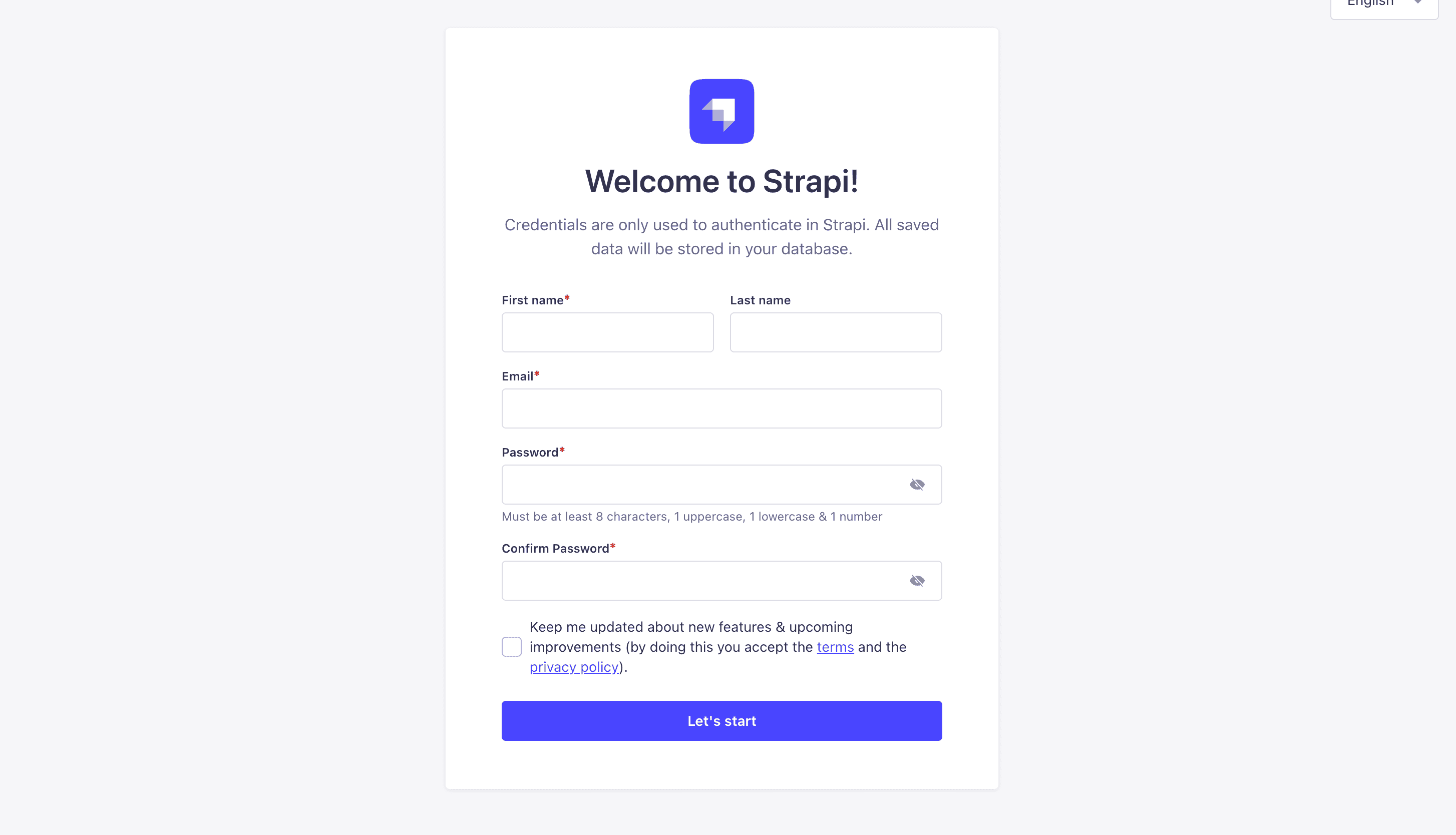
Go ahead and create your first Strapi user. All of this is local so you can use whatever you want.
Once you have created your user, you will be redirected to the Strapi Dashboard screen.

Publish Article Entries
Since we created our app with the example data, you should be able to navigate to your Article collection and see the data that was created for us.
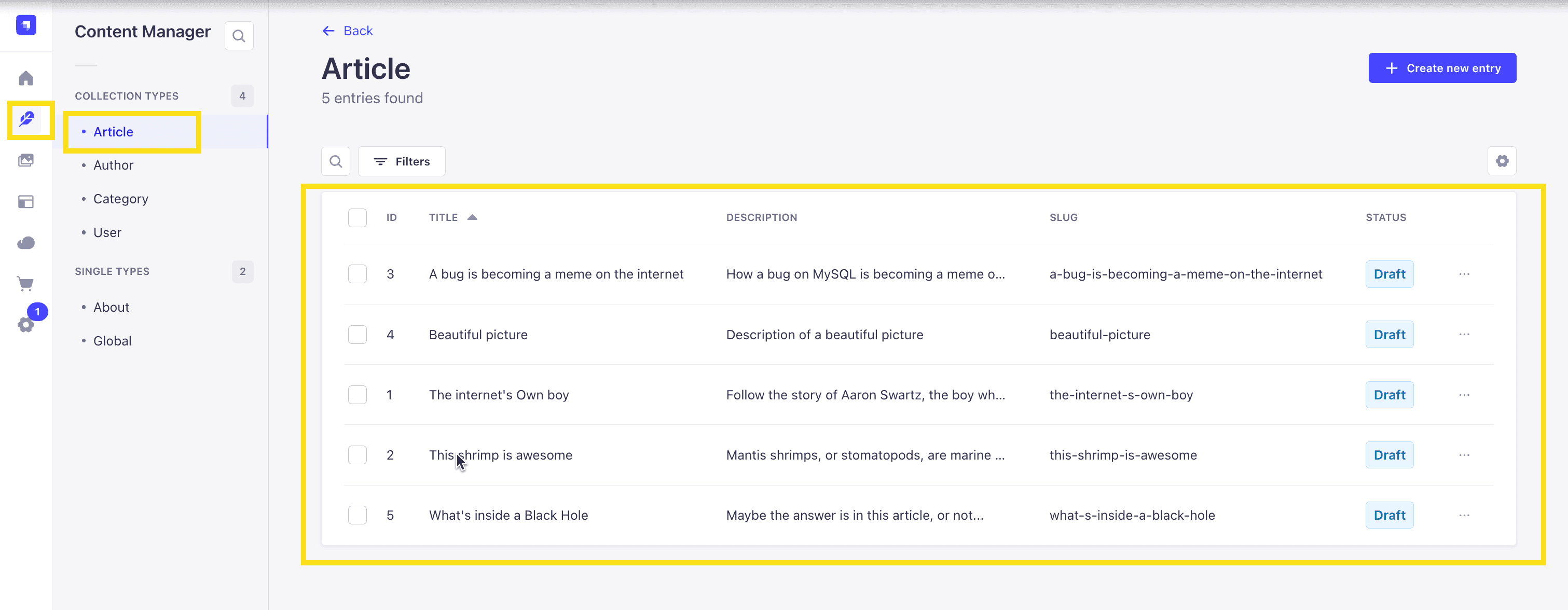
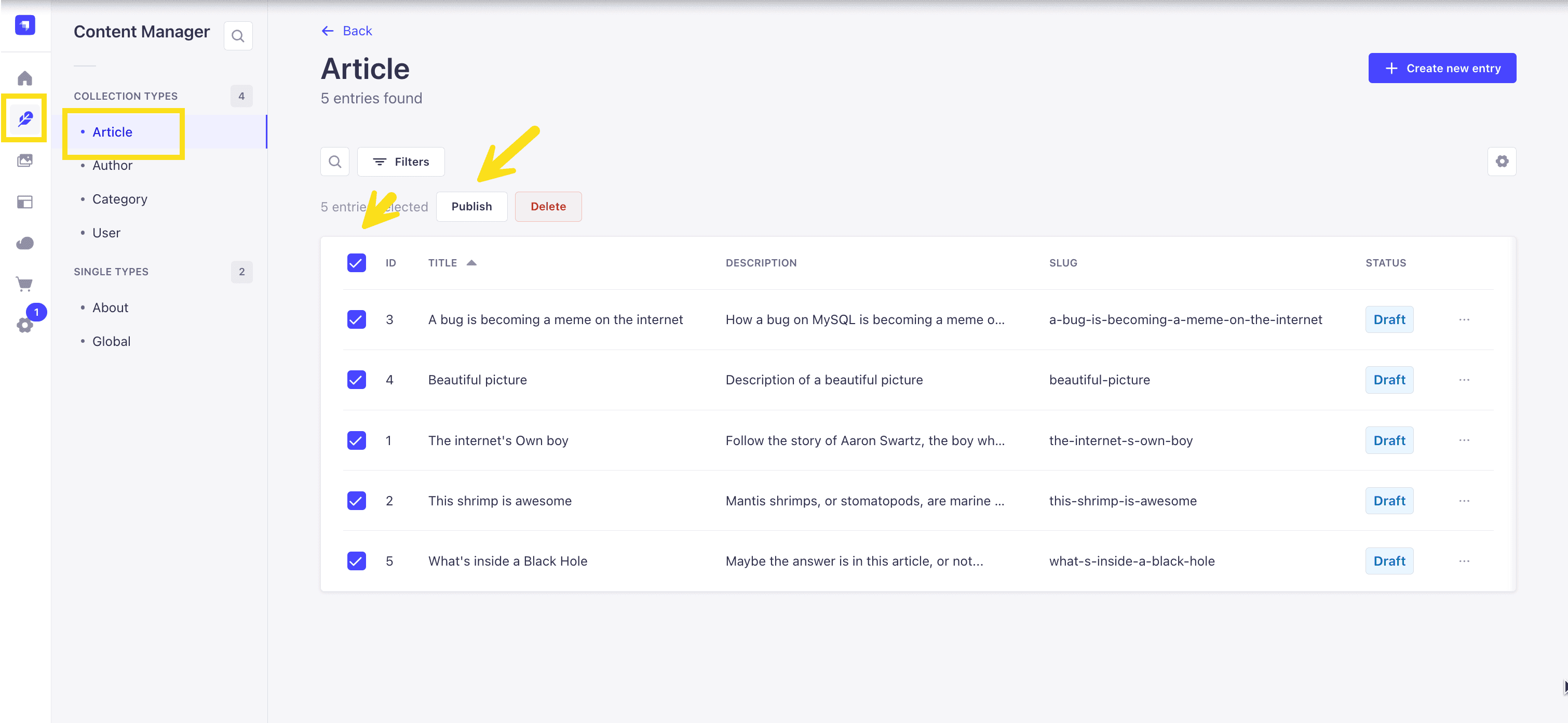
Now, let's make sure that all of the data is published. If not, you can select all items via the checkbox and then click the Publish button.
Enable API Access
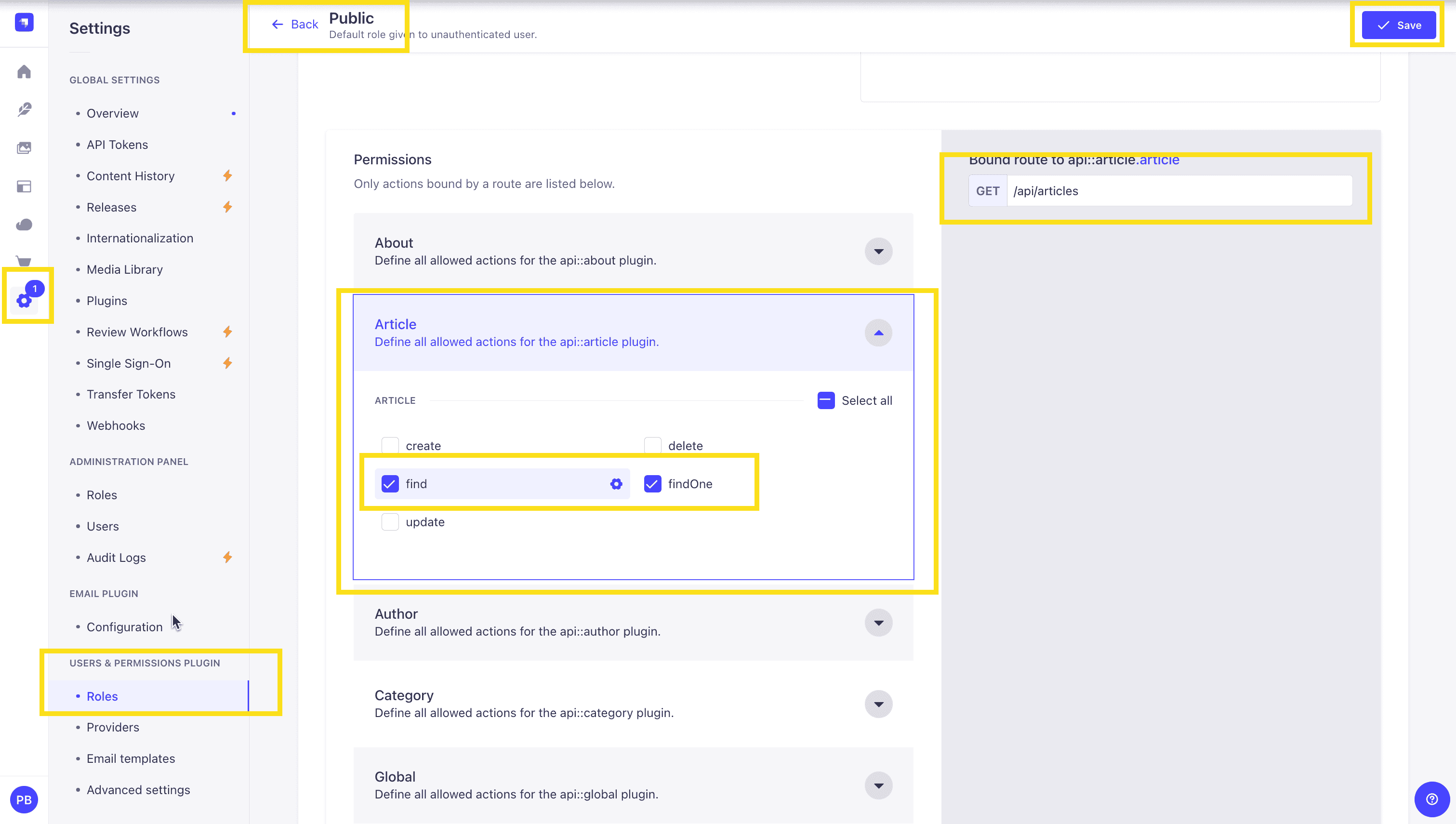
Once all your articles are published, we will expose our Strapi API for the Articles Collection. This can be done in Settings -> Users & Permissions plugin -> Roles -> Public -> Article.
You should have find and findOne selected. If not, go ahead and select them.
Test API
Now, if we make a GET request to http://localhost:1337/api/articles, we should see the following data for our articles.
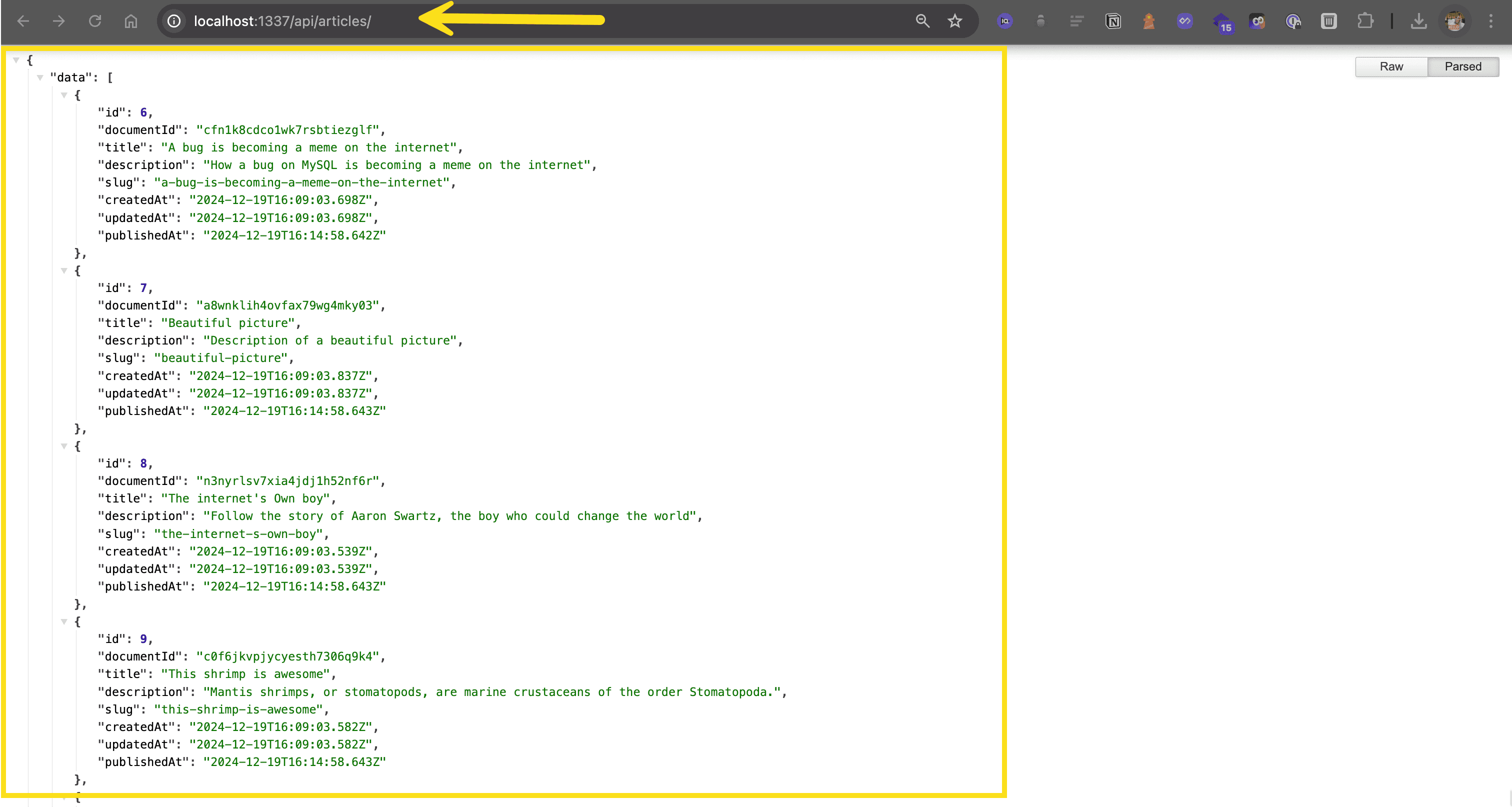
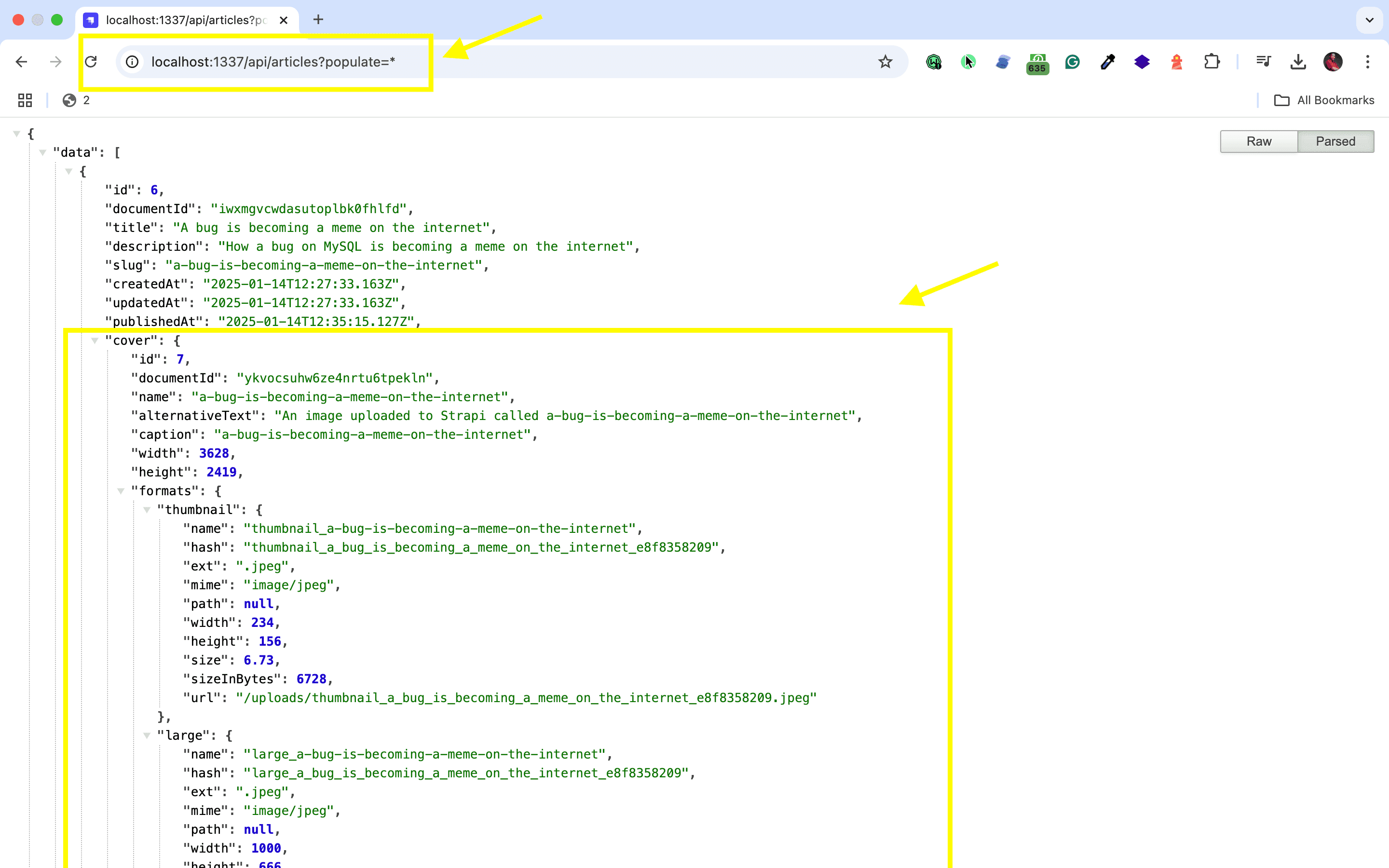
🖐️ Note: The article covers (images) are not returned. This is because the REST API by default does not populate any relations, media fields, components, or dynamic zones.. Learn more about REST API: Population & Field Selection.
So, let's get the article covers by using the populate=* parameter: http://localhost:1337/api/articles?populate=*
Getting Started With Monaco Editor
Integrating Monaco Editor with Strapi opens up a new level of coding efficiency in your content management workflow. Let's walk through how to configure Strapi, install what you need, and connect the editor so everything works seamlessly.
Installing Monaco Editor and Adjusting Settings
You can install the Monaco Editor using the following commands:
npm install monaco-editoror
yarn add monaco-editorNext, configure the editor's settings just the way you like them. Choose your themes, set up syntax highlighting, and pick the languages you need. To boost performance, consider loading the editor asynchronously using dynamic imports in your JavaScript or TypeScript files. If you're unsure which language to choose, you can read the detailed comparison of JavaScript and TypeScript for use with Strapi on their blog post titled "TypeScript vs JavaScript: Which One Should You Use With Strapi?".
Code Implementation
Now that you've set up Strapi and integrated Monaco Editor, let's get them talking to each other. Here's how:
- Embed the Editor: Create a container in your app where the editor lives:
<div id="monaco-editor-container"></div>- Import editor
import * as monaco from 'monaco-editor';

monaco.editor.create(document.getElementById('container'), {
  value: 'console.log("Hello, Monaco Editor!");',
  language: 'javascript',
  theme: 'vs-dark',
});- Connect with Strapi: Ensure that changes in the editor sync up with Strapi's APIs. Set up event listeners or create endpoints to fetch and save content, keeping everything in harmony. Whether you're using REST or GraphQL, understanding how REST and GraphQL integration works can help you effectively connect the editor with Strapi's APIs. Don't forget to implement security measures like JWT authentication with Strapi to secure content access when connecting the editor to your CMS.
Need more advanced tips? The Strapi 5 Documentation offers advanced features and customization options for various aspects of Strapi, including WYSIWYG editors and other plugins. For more on the Monaco Editor, visit the Monaco Editor documentation.
By integrating Monaco Editor with Strapi's headless CMS, you'll streamline how you build, edit, and manage content. Follow these steps, and you'll have a smooth workflow that fuels your creativity without getting tangled in setup hassles.
Awesome, great job!
Strapi Open Office Hours
If you have any questions about Strapi 5 or just would like to stop by and say hi, you can join us at Strapi's Discord Open Office Hours Monday through Friday at 12:30 pm - 1:30 pm CST: Strapi Discord Open Office Hours
For more details, visit the Strapi documentation and Monaco Editor documentation.
Frequently Asked Questions
Monaco Editor is the code editor that powers VS Code. Use it in Strapi for content types that require code editing with syntax highlighting, IntelliSense, and advanced editing features.
Create a Strapi plugin that wraps the @monaco-editor/react package. Register it as a custom field type for content types that need code editing capabilities.
Monaco supports syntax highlighting and IntelliSense for dozens of languages including JavaScript, TypeScript, HTML, CSS, JSON, and many more. Configure the language mode based on your field's purpose.
Yes, configure Monaco's options to enable or disable features like minimap, line numbers, word wrap, and theme. Tailor the experience for your content editors' needs.
Store the code as plain text in a Strapi text field or JSON field. Monaco handles the editing experience while Strapi stores the raw content for use in your application.